Applying a McKesson Invoice File to Purchase Orders
Warning This process is decommissioned as of April 1, 2022. Refer to Downloading and Reconciling McKesson Invoices Using Web Services for further instructions.
When a new invoice file is downloaded, it is displayed in the Auto-Reconciliation section of the pharmacy’s McKesson Supplier folder. The status of the invoice file will be NEW.
- Select More > Supplier.
- Search for and select the appropriate McKesson supplier.
Note: If the McKesson supplier is already displayed in the Supplier folder, select Revert to update the Current Invoice File fields. If the Current Invoice File fields are not updated, they will not display the most recent invoice file information.
- Select the Orders tab. The Orders tab lists all OPEN and SENT McKesson purchase orders. The invoice file will be used to reconcile SENT purchase orders.
- Select Apply.
- A validation message confirms if the auto-reconciliation process should begin. Press Yes to continue.
- The Auto-Reconciling Purchase Order status bar appears on the screen while PharmaClik Rx applies the invoice file to the appropriate SENT purchase order(s). The Applied Date column is updated.
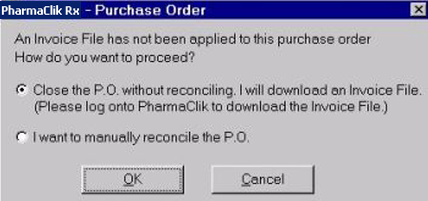
Note: For pharmacies that use auto-reconciliation, validations have been put in place to prevent McKesson purchase orders from being reconciled before an invoice file has been applied. When viewing a purchase order, the following prompt appears if you attempt to reconcile without applying a McKesson Invoice file.
- Select the order that has an Applied Date and needs to be reconciled.
- Select Actions > Reconcile.
- Repeat steps 7 - 8 until all purchase orders have been reconciled.
- If there are any discrepancies between the purchase order and the invoice file, the Auto-Reconcile Exceptions Report prints as soon as the invoice file is applied. This report can be used to manually correct the purchase order before reconciling.